How to Effectively Clean Your C Drive and Free Up Space
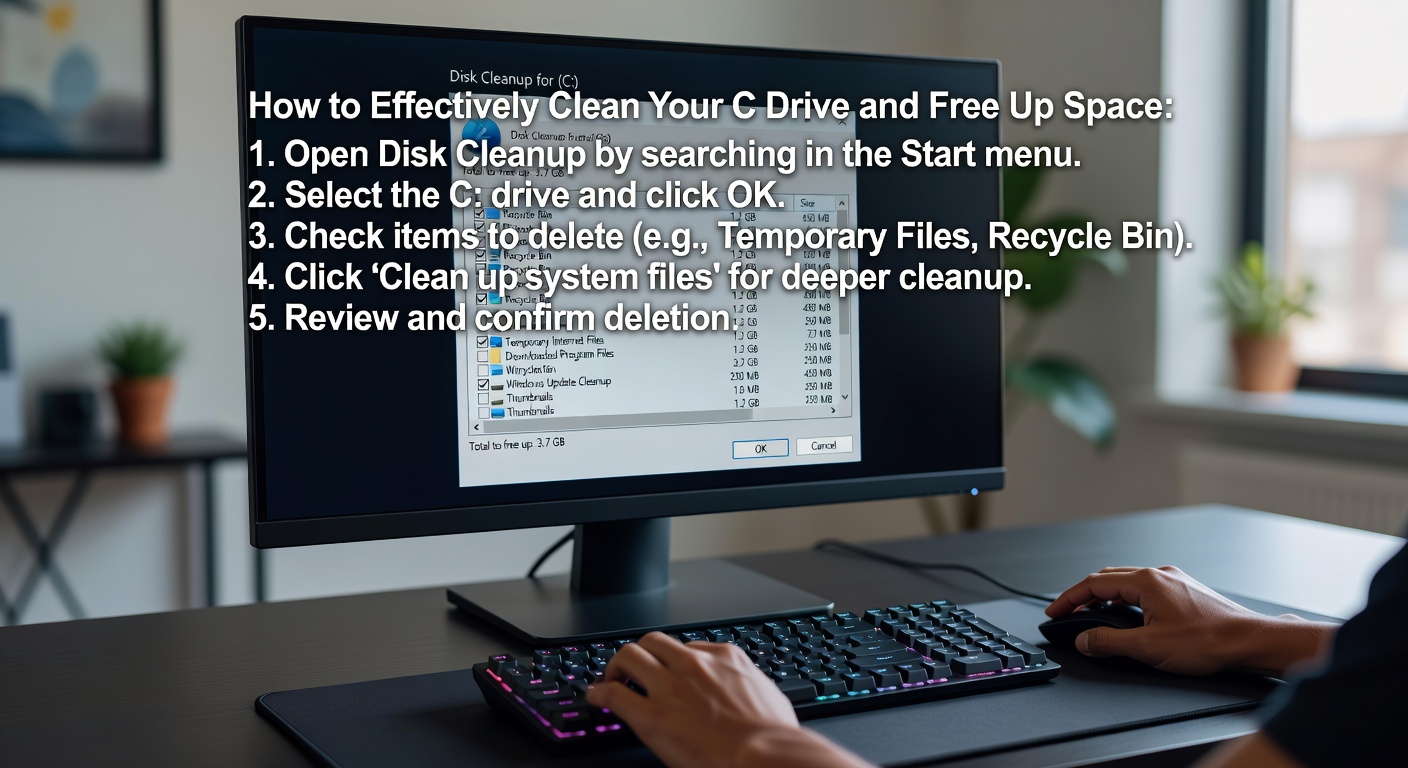
A cluttered C drive is one of the most common reasons behind a sluggish computer. As your system drive fills up with temporary files, cached data, outdated installations, and forgotten downloads, performance degrades steadily. Learning how to clean your C drive properly is essential for maintaining a fast, reliable PC.
Why Does Your C Drive Fill Up So Quickly?
Before diving into solutions, it helps to understand what consumes your disk space. The most common culprits include:
Step-by-Step Guide to Cleaning Your C Drive
1. Run a Dedicated Disk Cleanup Tool
While Windows includes a basic Disk Cleanup utility, a purpose-built tool like ClearC provides a far more thorough analysis. ClearC scans your entire C drive, identifies junk files across multiple categories, and lets you remove them safely with a single click — no technical expertise required.
2. Clear Temporary and Cache Files
Navigate to your %temp% folder or use ClearC to automatically detect and remove temporary files. This step alone can often recover several gigabytes of space. Pay special attention to:
3. Remove Old Windows Update Files
After major Windows updates, the system retains previous installation files in a folder called Windows.old. This folder can consume 10–20 GB or more. If your system is running smoothly after an update, these files are safe to remove.
4. Uninstall Unused Programs
Review your installed applications and remove any software you no longer use. Focus on large programs such as games, design suites, or trial software that may have been forgotten. ClearC can help identify which programs occupy the most space, making this process significantly easier.
5. Manage System Restore Points
Keep your most recent restore point and consider deleting older ones. You can adjust the amount of disk space allocated to System Restore through System Properties > System Protection to prevent excessive storage usage in the future.
6. Analyze and Remove Duplicate Files
Duplicate photos, documents, and media files are surprisingly common. A smart cleanup tool can scan for exact and near-duplicate files, allowing you to review and delete redundant copies without risk.
Best Practices to Keep Your C Drive Clean
Prevention is always more effective than cure. Establishing good habits will minimize the need for deep cleanups.
How Much Space Can You Realistically Recover?
Results vary depending on how long it has been since your last cleanup. However, most users report recovering 5–30 GB of space after a thorough C drive cleanup. In extreme cases — especially on systems that have never been cleaned — it is possible to reclaim 50 GB or more.
Take Action Now
A clean C drive translates directly into faster boot times, smoother application performance, and fewer system errors. Instead of spending hours manually hunting down junk files, let ClearC handle the heavy lifting. Download ClearC today, run your first scan, and experience the difference a clean system drive makes.
Comments
Leave a Comment